How to check facebook password ?
How to See Facebook Password on Android Phone
If the password for your Facebook account is saved on your Android device, the following guide should teach you how to see Facebook password on Android so you can view your password. It shows multiple methods of doing the task so read on to learn all those methods.
If the password for your Facebook account is saved on your Android device, the following guide should teach you how to see Facebook password on Android so you can view your password. It shows multiple methods of doing the task so read on to learn all those methods.
View Saved Facebook Password in Chrome on Android
If you use Facebook’s mobile website in the Chrome browser on your Android, then you do have a way to view the saved password. Google Chrome usually saves all the passwords that you use to log-in to various websites and it covers your Facebook password as well.
The following shows how you can reveal your Facebook password in Chrome on your Android phone:
Step 1 Launch the Chrome browser on your Android phone.
Step 2 When the browser launches, tap on three-dots at the top-right corner and select the option that says Settings. It will open the settings panel for the browser.
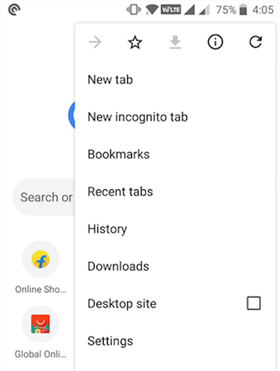
Launch Chrome Settings on Android
Step 3 On the screen that follows, you will have a number of options to choose from. Tap on the option that says Passwords as that is where your Facebook password is located.
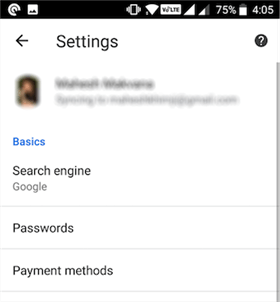
Access the Passwords Section in Chrome for Android
Step 4 The screen that follows will have all of the passwords you have saved in Chrome on your device. Look for the entry named Facebook and tap on it to view your Facebook password.
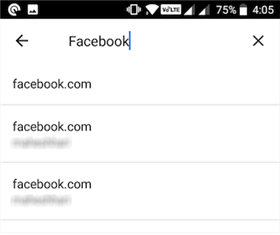
Find and Tap on Facebook in the Passwords List
Step 5 Tap on the eye icon on the following screen, enter in your phone’s passcode, and you should be able to view your password.
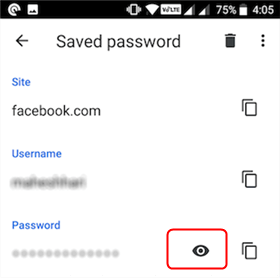
View Your Saved Facebook Password in Chrome for Android
There you go. That is how you view your Facebook account’s password that is saved in the Chrome browser on your device.
If you use Facebook’s mobile website in the Chrome browser on your Android, then you do have a way to view the saved password. Google Chrome usually saves all the passwords that you use to log-in to various websites and it covers your Facebook password as well.
The following shows how you can reveal your Facebook password in Chrome on your Android phone:
Step 1 Launch the Chrome browser on your Android phone.
Step 2 When the browser launches, tap on three-dots at the top-right corner and select the option that says Settings. It will open the settings panel for the browser.
Launch Chrome Settings on Android
Step 3 On the screen that follows, you will have a number of options to choose from. Tap on the option that says Passwords as that is where your Facebook password is located.
Access the Passwords Section in Chrome for Android
Step 4 The screen that follows will have all of the passwords you have saved in Chrome on your device. Look for the entry named Facebook and tap on it to view your Facebook password.
Find and Tap on Facebook in the Passwords List
Step 5 Tap on the eye icon on the following screen, enter in your phone’s passcode, and you should be able to view your password.
View Your Saved Facebook Password in Chrome for Android
There you go. That is how you view your Facebook account’s password that is saved in the Chrome browser on your device.
View Saved Facebook Password in Firefox on Android
If you are not a big fan of Google and you use Firefox on your device, you still have a way to view the Facebook password on your phone. The following are the steps on how to view the saved Facebook password in Firefox on Android.
Step 1 Launch the Firefox browser on your Android phone.
Step 2 When the browser opens, tap on three-dots at the top-right corner and select Settings. It will launch Firefox’s settings panel.
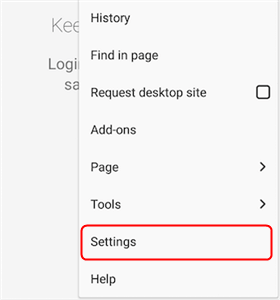
Open the Settings Panel for Firefox on Android
Step 3 On the settings panel screen, find and tap on the option that says Privacy as that is where the browser saves your passwords.
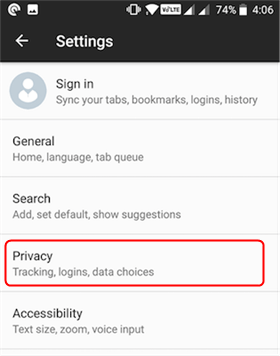
Access Privacy Options in Firefox for Android
Step 4 On the following screen, tap on the option that says Manage logins to view your saved usernames and passwords in Firefox.
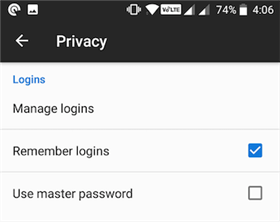
Access the Logins Section in Firefox for Android
Step 5 You should be able to find your Facebook password in the list of logins shown on your screen.
That is how you view saved Facebook password in Firefox for Android.
If you are not a big fan of Google and you use Firefox on your device, you still have a way to view the Facebook password on your phone. The following are the steps on how to view the saved Facebook password in Firefox on Android.
Step 1 Launch the Firefox browser on your Android phone.
Step 2 When the browser opens, tap on three-dots at the top-right corner and select Settings. It will launch Firefox’s settings panel.
Open the Settings Panel for Firefox on Android
Step 3 On the settings panel screen, find and tap on the option that says Privacy as that is where the browser saves your passwords.
Access Privacy Options in Firefox for Android
Step 4 On the following screen, tap on the option that says Manage logins to view your saved usernames and passwords in Firefox.
Access the Logins Section in Firefox for Android
Step 5 You should be able to find your Facebook password in the list of logins shown on your screen.
That is how you view saved Facebook password in Firefox for Android.
The Bottom Line
If you have been wondering “how to see my Facebook password on Android”, our guide above should help you do it using multiple methods. We hope it helps you find your Facebook password so you can use it wherever you wanted to use it.
If you have been wondering “how to see my Facebook password on Android”, our guide above should help you do it using multiple methods. We hope it helps you find your Facebook password so you can use it wherever you wanted to use it.


Comments
Post a Comment